
Agent Cloud
An opt-in deploy mode where Exo provisions a Kubernetes cluster for you and installs the operator into it automatically, so a deployment goes from created to running agents with no manual setup.
Agent Cloud is the shortest path to a cluster that runs your agents. Instead of installing the operator into a cluster you manage, you tick one box when you create a deployment and Exo provisions the cluster for you and bootstraps the operator into it automatically.
What it is
When you turn on Agent Cloud for a deployment, Exo provisions a managed Kubernetes cluster, sizes it to the resource quota you choose, installs the operator into it, and connects it to the control plane for you. There is no Helm to run, no deployment token to copy, and no manual connect step. Once provisioning finishes the deployment comes online like any other.
Create a deployment
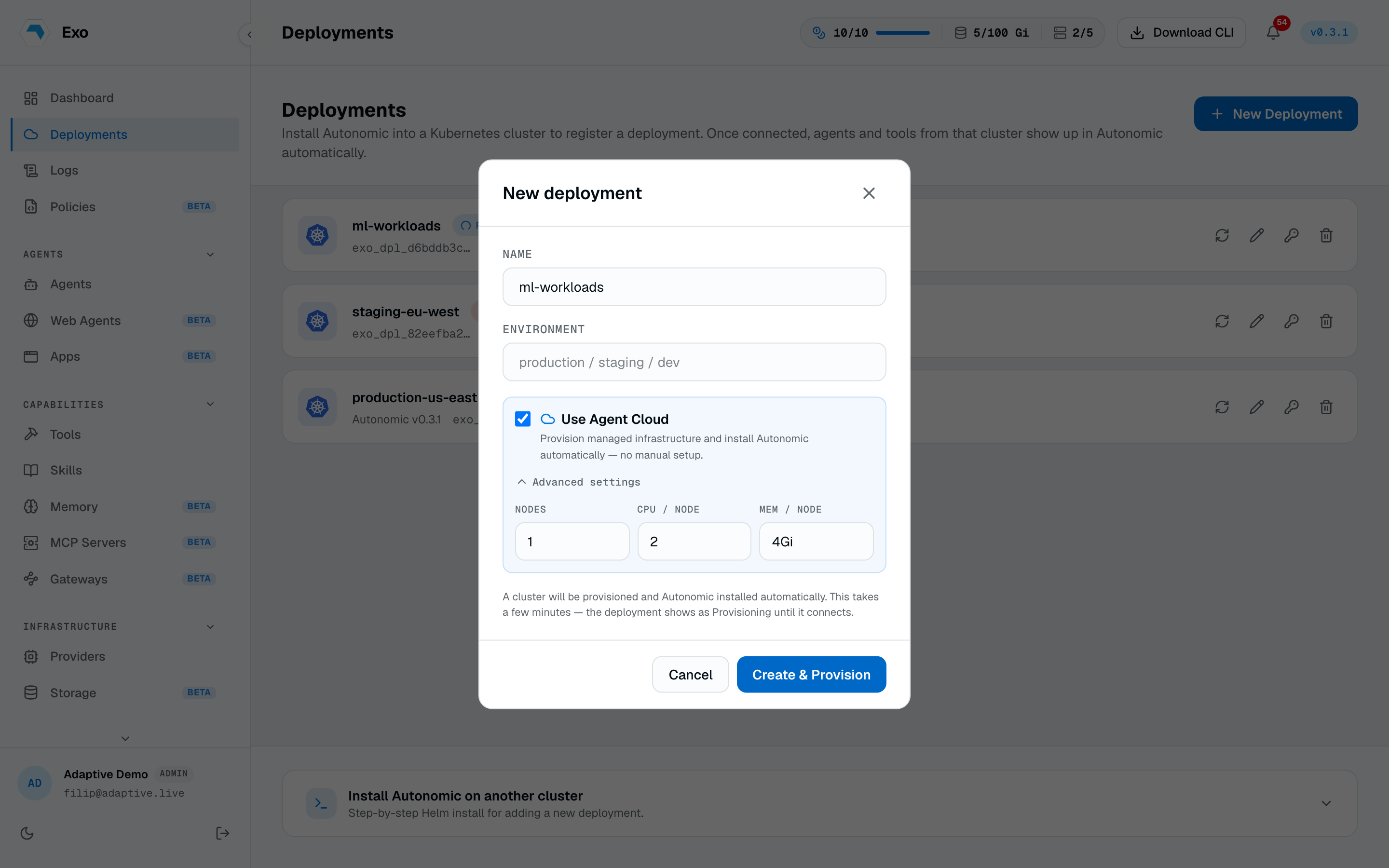
In the dashboard, go to Deployments → New, name the deployment, then tick Use Agent Cloud. Size the cluster with three fields:
| Field | Default | Max | What it sets |
|---|---|---|---|
Nodes | 1 | 3 | Number of nodes in the provisioned cluster. |
CPU / node | 2 | 2 cores | Number of CPU cores per node (for example 2). Required. |
Mem / node | 4Gi | 4Gi | Memory per node (for example 4Gi). Required. |
Sizing sets a resource quota on the provisioned cluster (nodes times per-node CPU and memory). There is no disk or instance-type choice. The Max values are hard caps: a request above them is rejected, so a cluster tops out at 3 nodes of 2 CPU cores and 4Gi each, which is 6 cores and 12Gi across the cluster. Click Create & Provision: the deployment is created right away and provisioning runs in the background.
Provisioning lifecycle
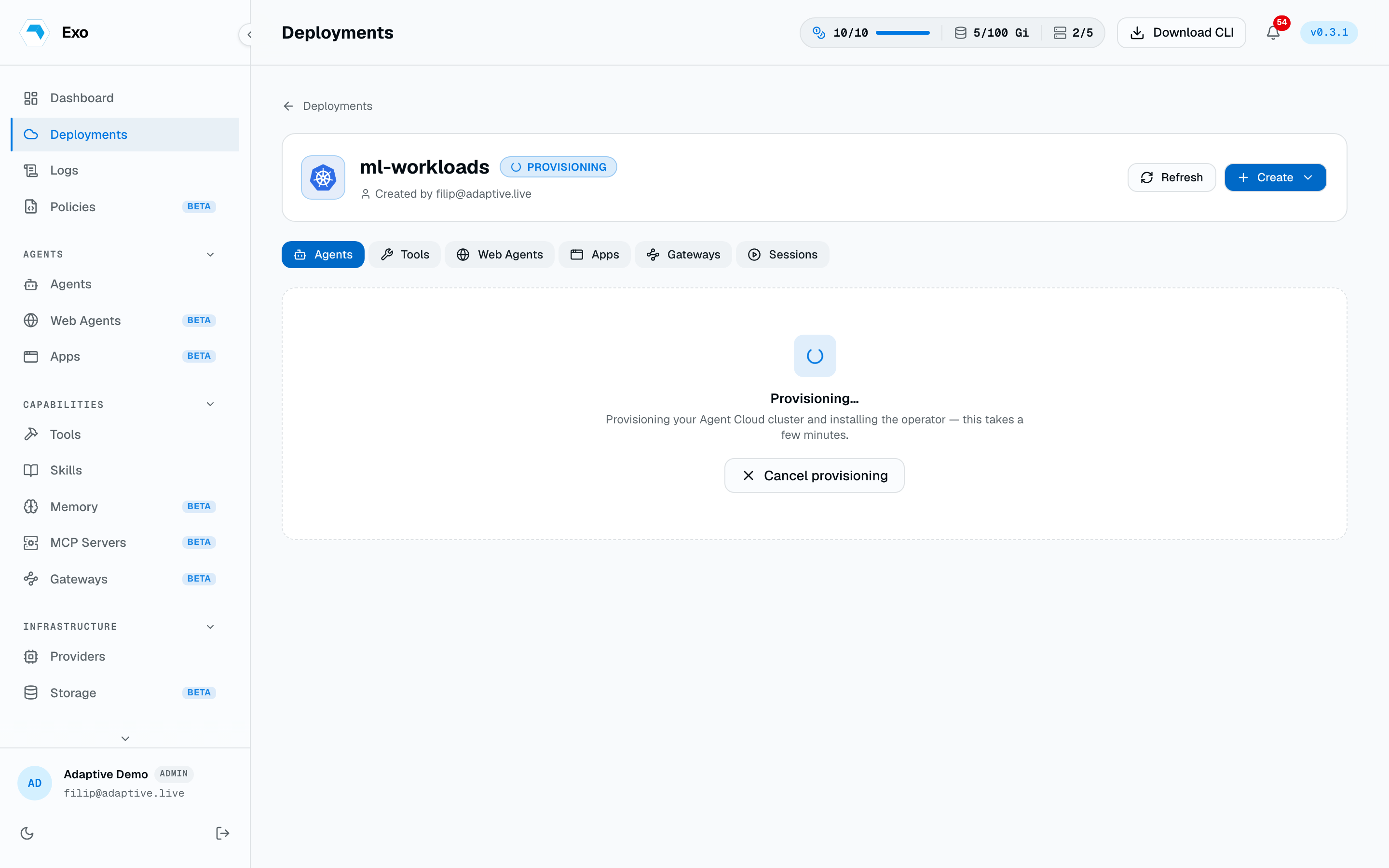
A new Agent Cloud deployment moves through a few states before it's ready. It shows a Provisioning… pill in the deployment list, and its detail page shows a panel in place of the usual agents and tools while the cluster is being built. This takes a few minutes.
| State | What you see |
|---|---|
| pending | The deployment is queued; provisioning hasn't started yet. |
| provisioning | The Provisioning… pill; the cluster is being created and the operator installed. |
| ready | The operator connects and the deployment shows online, with its resource lists populated. |
| failed | The Provisioning failed pill; use Redeploy to try again. |
Manage the cluster
Once a deployment exists, you manage its cluster from the deployment detail page.
- Resize. When the deployment is ready, the Resize cluster button lets you change the node count, CPU, or memory. The resource quota is updated in place and running agents keep running. Resize is available only in the ready state.
- Redeploy. If provisioning failed, the status panel offers Redeploy to try again.
- Cancel provisioning. While a deployment is still pending or provisioning, Cancel provisioning stops the attempt, tears down anything partially created, and leaves the deployment in the failed state so you can redeploy or delete it.
- Delete. Deleting an Agent Cloud deployment tears down the provisioned cluster with it. This is automatic; there is no separate teardown step.
When provisioning fails
A failed deployment shows the reason on its status panel. The common ones, and what to do:
| Message | What to do |
|---|---|
| A previous cluster for this deployment is still being cleaned up. | Wait a minute, then redeploy. |
| Provisioning timed out before the cluster was ready. | Redeploy to try again. |
| Not enough cluster capacity to provision right now. | Try again later, or reduce the requested size. |
| Couldn't provision the Agent Cloud cluster. | Redeploy to try again, or contact support if it keeps failing. |